Facing a DigiLocker login problem while trying to access your marksheet, certificates or other documents?
You may be unable to sign in because you forgot your security PIN, changed your mobile number or are not receiving an OTP.
The good news is that DigiLocker provides account recovery options. You usually do not need to create another account. Here’s how to regain access.
New to DigiLocker? Learn what DigiLocker is, how it works and its benefits for students before accessing your digital documents.
Why Can’t You Log In to DigiLocker?
First, identify what is preventing you from signing in.
| Login problem | What you should do |
| Forgot security PIN | Use the Forgot Security PIN option. |
| Old mobile number lost | Try signing in using Aadhaar OTP, if you can access the Aadhaar-linked number. |
| OTP not received | Check your mobile network and request another OTP. |
| Forgot username | Use an available mobile number or Aadhaar sign-in option. |
| Account already registered | Try recovering the existing account instead of creating another. |
How to Reset Your DigiLocker Security PIN?
If you have forgotten your PIN, follow these steps:
- Visit the official DigiLocker website and select Sign In.
- Choose Forgot Security PIN.
- Enter your registered Aadhaar number or mobile number and the requested date of birth.
- Complete the available OTP verification.
- Set a new security PIN and sign in.
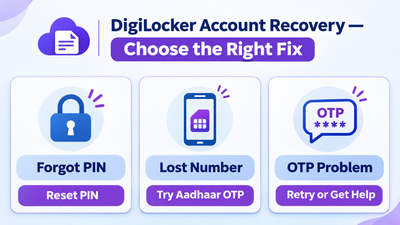
If your old DigiLocker mobile number is unavailable but your Aadhaar-linked number works, the official FAQ describes a Try using Aadhaar OTP instead option.
The available screens may differ slightly between the website and app.
How to Recover DigiLocker After Changing Your Mobile Number?
Lost access to your old phone number? You may still be able to recover your account through Aadhaar verification.
If You Can Receive Aadhaar OTP
According to DigiLocker’s official instructions:
- Open DigiLocker and select Sign In.
- Enter your Aadhaar number and security PIN.
- Select Try using Aadhaar OTP instead, if displayed.
- Complete verification using the OTP sent to your Aadhaar-linked mobile number.
- After signing in, open Profile and select the edit option beside your DigiLocker mobile number.
- Enter your new number and verify it using the OTP sent to that number.
Once verification succeeds, your DigiLocker-linked mobile number should be updated.
Important: This process requires access to your Aadhaar-registered mobile number.
If You Cannot Receive Aadhaar OTP Either
If you have lost access to both numbers, you may need to update your Aadhaar-linked mobile number through UIDAI.
Visit the official UIDAI website to find the current mobile-number update procedure and authorised centres.
If account recovery still fails, contact DigiLocker support rather than creating a duplicate account.
What If DigiLocker OTP Is Not Received?
OTP delivery can sometimes be delayed by network or service issues.
Try these checks:
- Confirm that the phone number is correct and active.
- Check your mobile network and SMS reception.
- Wait briefly and request a fresh OTP.
- If the issue continues, try again later or report the problem to DigiLocker support.
DigiLocker’s FAQ states that an OTP is valid for 10 minutes. Use the latest OTP rather than an expired one.
How to Contact DigiLocker Support?
If none of the recovery methods works, visit the official DigiLocker Helpdesk.
Explain whether the problem involves your PIN, mobile number or OTP. Include the error message and a screenshot if requested.
Never share your OTP or security PIN with anyone.
Frequently Asked Questions
1. Can I Log In to DigiLocker Without My Old Mobile Number?
You may be able to sign in using Aadhaar OTP if your account supports that recovery option and you can access the Aadhaar-linked mobile number.
2. Will I Lose My Issued Documents After Changing My Mobile Number?
Changing your account’s mobile number is not the same as deleting your account. Recover the existing account and check Issued Documents after signing in.
Need Help Recovering Your DigiLocker Account?
If your DigiLocker login problem continues, use the official recovery options before creating another account.
For guidance on accessing government digital services, visit OBC Rights People Point.
Official References
- DigiLocker – Frequently Asked Questions
- DigiLocker – Account Recovery
- UIDAI – Official Website
- DigiLocker – Helpdesk
Updated: 4 November 2026. Recovery methods and screen labels may change. Use the options displayed on the official DigiLocker website or app.