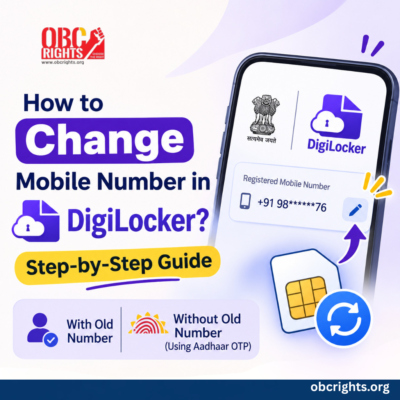
Want to update the mobile number linked to your DigiLocker account? The DigiLocker mobile number change process can be completed through your account’s Profile section.
If you have lost your old number, you may still be able to update it using Aadhaar OTP. Here’s what to do in each situation.
How to Change Mobile Number in DigiLocker?
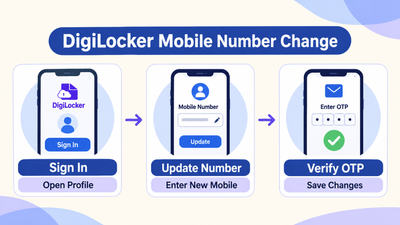
If you can already access your DigiLocker account, follow these steps:
- Visit DigiLocker or open the official mobile app.
- Sign in using your available login method.
- Open the Profile section.
- Select the edit (pencil) icon beside your registered mobile number.
- Enter your new mobile number and select Submit.
- Enter the OTP received on your new number to complete verification.
Once verification succeeds, your DigiLocker-linked mobile number should be updated.
If you are unable to sign in to your account, follow our guide on DigiLocker login problems and account recovery to regain access.
How to Change DigiLocker Mobile Number Without the Old Number?
Lost access to your previous number? DigiLocker provides an alternative sign-in method if you can receive an OTP on your Aadhaar-linked mobile number.
Follow these official steps:
- Open DigiLocker and select Sign In.
- Enter your Aadhaar number and DigiLocker security PIN.
- Select Try using Aadhaar OTP instead, if displayed.
- Enter the OTP sent to your Aadhaar-linked mobile number.
- After signing in, open Profile and edit your registered mobile number.
- Enter your new number and complete OTP verification.
You do not need to receive an OTP on your lost DigiLocker number for this recovery route.
Important: Your DigiLocker-registered number and Aadhaar-linked number may be different. This method works only when you can receive Aadhaar OTP and the relevant sign-in option is available.
What If Your Aadhaar-Linked Mobile Number Is Also Unavailable?
If you cannot receive OTPs on either number, you may need to update your Aadhaar-linked number first.
UIDAI’s current guidance says:
- If you meet the conditions for its official Aadhaar app, you may be able to update your Aadhaar mobile number through the app.
- If you have lost access to the old Aadhaar-registered number, visit an Aadhaar Seva Kendra or authorised update centre.
After UIDAI completes the update, try the DigiLocker Aadhaar OTP recovery method again.
Check the official UIDAI mobile-number update guidance.
To understand DigiLocker’s features and how it helps students access digital documents, read What Is DigiLocker? How It Works and Benefits for Students.
DigiLocker Mobile Number Change: Common Problems and Solutions
| Problem | What to do |
| Old DigiLocker number lost | Use Aadhaar OTP recovery if your Aadhaar-linked number is accessible. |
| New mobile OTP not received | Check the number, network and SMS delivery, then request another OTP. |
| Aadhaar OTP unavailable | Check UIDAI’s mobile-number update options. |
| Forgot DigiLocker PIN | Use the official Forgot Security PIN recovery option. |
| Number still not updating | Raise a request through DigiLocker Support. |
If you have also forgotten your PIN or cannot sign in, follow our guide on DigiLocker login problems and account recovery before attempting the number change.
Will Changing Your Mobile Number Affect DigiLocker Documents?
Changing your registered mobile number does not normally delete the documents in your existing DigiLocker account.
After updating the number, sign in to the same account and check Issued Documents.
Avoid creating a second account simply because your old number is unavailable. Recovering the existing account helps you retain access to the documents already linked to it.
Frequently Asked Questions
1. Can I Change My DigiLocker Mobile Number Without Aadhaar OTP?
If you can already sign in, use the available Profile update option. If you cannot access your account or its registered number, Aadhaar OTP may be needed for recovery.
2. Do I Need to Update Aadhaar When Changing My DigiLocker Number?
No. Your DigiLocker and Aadhaar mobile numbers are separate account details. You only need to update Aadhaar if its registered number also requires changing or you cannot complete the necessary Aadhaar verification.
Need Help Updating Your DigiLocker Details?
If your DigiLocker mobile number change is unsuccessful, check which number is preventing verification and follow the appropriate recovery process.
For unresolved technical issues, visit the official DigiLocker Helpdesk.
For additional guidance on digital documents and government services, contact OBC Rights People Point.
Official References
- DigiLocker – Frequently Asked Questions
- DigiLocker – Official Website
- UIDAI – Aadhaar Mobile Number Update FAQ
- DigiLocker – Official Helpdesk
Updated: 5 November 2026. Menu labels and verification options may vary between DigiLocker app and website versions.